

📝 What you’ll learn in this article
- I made a new account — so why was another hurdle waiting?
- On my first work upload, why was I rejected again and again?
- How did the two-month battle end?
In Part 1, the mystery of not being able to log in for two months was finally solved, and I managed to create a new artist account using a Gmail trick!
This time is the continuation: the story up to actually uploading my works.
First, Identity Verification
Now that I had a new account, I tried to upload a work right away… but before that, there was one more gate. SMS verification by phone number.
Since it’s an overseas site, honestly I worried about fraud… but worrying doesn’t help, so I proceeded as-is.
When I entered my usual number, a confirmation code arrived; entering it completed the identity verification safely. This part I passed smoothly, without stumbling.
The First Work Hits the Resolution Wall
Now the main topic: uploading works! The first I submitted was “World Soccer Championship (Taisho Soccer Girl – Japan World Cup 2026),” a work combining Taisho Roman with support for the Japanese national team.
I selected the image and pressed the upload button… and (as expected) an error. A warning in English appeared, but I can’t read English, laughs. I immediately screenshot it and throw it to Claude.
Apparently, the warning was to the effect of “insufficient resolution.”
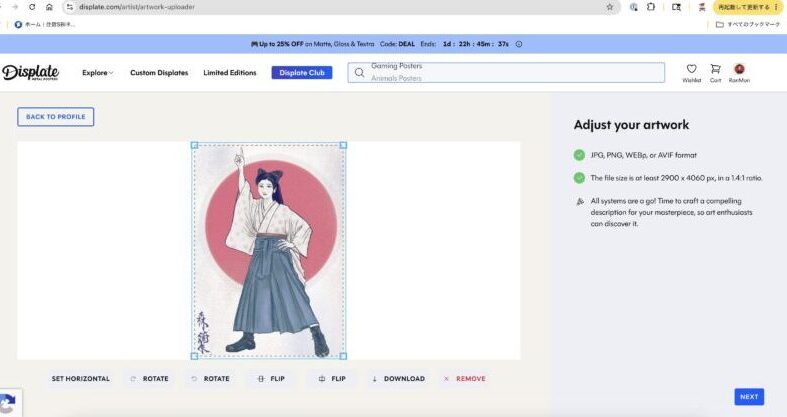
On FAA and Redbubble, which I’d registered on so far, honestly there were no strict resolution demands (INPRNT has its quirks, though). But when I checked Displate’s rules with AI, they were: no less than 2900×4060 pixels! And an aspect ratio of 1.4:1. The normal work images I had on hand didn’t come close.
Displate prints directly onto metal, so due to the nature of the product, its resolution standards are probably more severe than other platforms.
In a hurry, I remade a high-resolution version and somehow got this first work through.
The Second Work Hits Exactly the Same Wall
With the first work, I should have learned that “Displate is strict about resolution.” Yet when I tried to upload the second work, “Doshanoyo Girl in Hakama,” right after — the same error again.
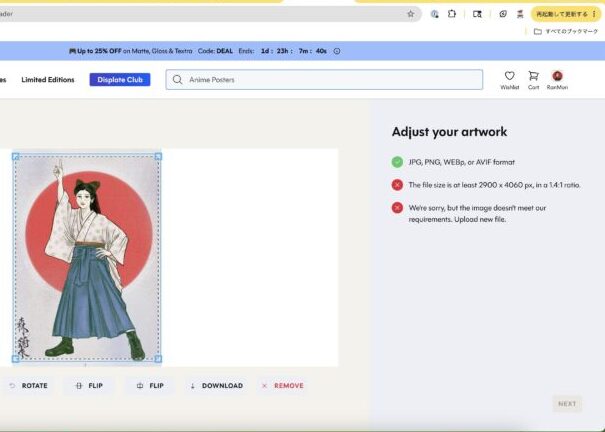
This work was actually not a Displate debut — it had already been registered on FAA (Fine Art America) since June. It had a decent track record of 53 views (FAA results), and precisely because it was a second work I rolled out with confidence, I never thought I’d hit the same wall again.
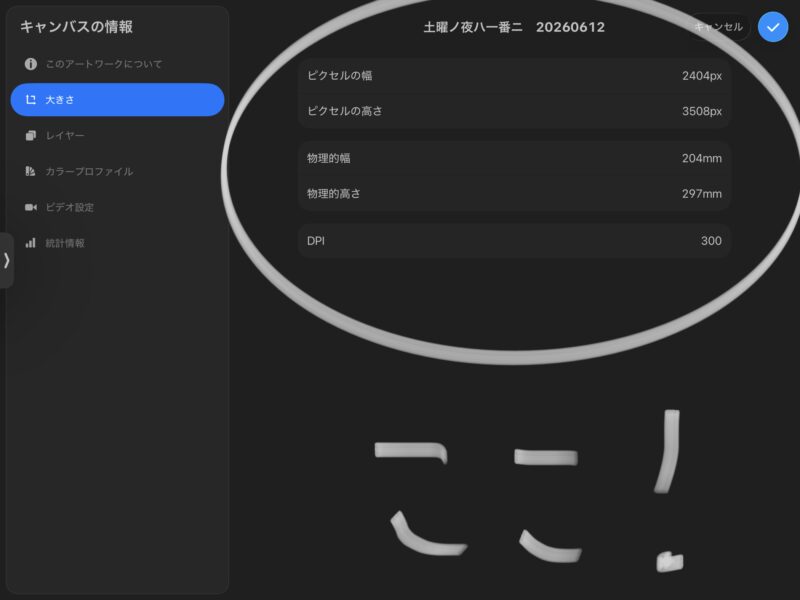
Checking the image details on my iPad, the size was 2404×3508 pixels. It fell short of Displate’s required 2900×4060 pixels by about 500 pixels in both dimensions.
Enlarging the Canvas Itself in Procreate
For the first work I had somewhat vaguely “swapped in a high-resolution version,” but this time I decided to face it more properly.
First, checking the canvas info in Procreate: width 2404px, height 3508px, DPI 300.
From here, I created a new canvas of width 3000px × height 4200px, DPI 300.
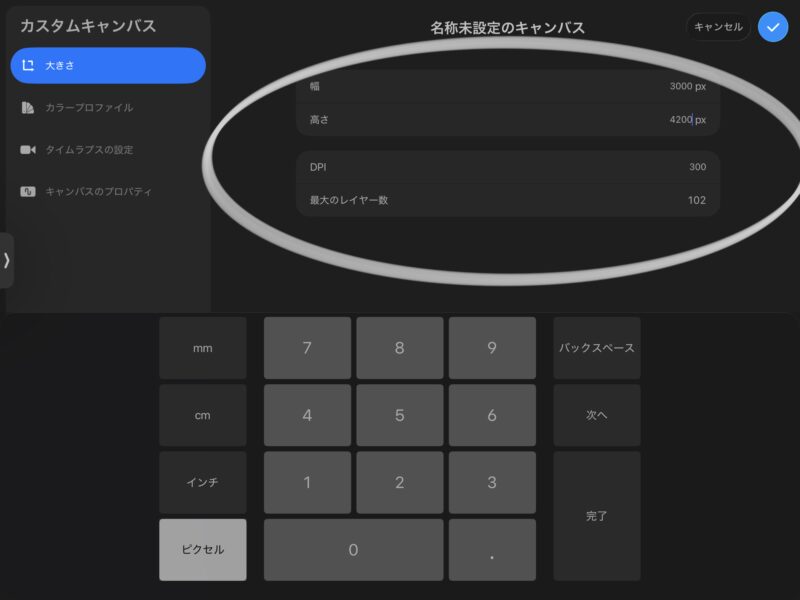
I copied all the layers of the original work, pasted them onto the new canvas, then used the “Transform” tool’s corner handles to enlarge while keeping the aspect ratio. The original ratio (2404:3508) and the new canvas ratio (3000:4200) were quite close, so it fit without much distortion.
When I exported and checked the size, it was safely 3000×4200 pixels.
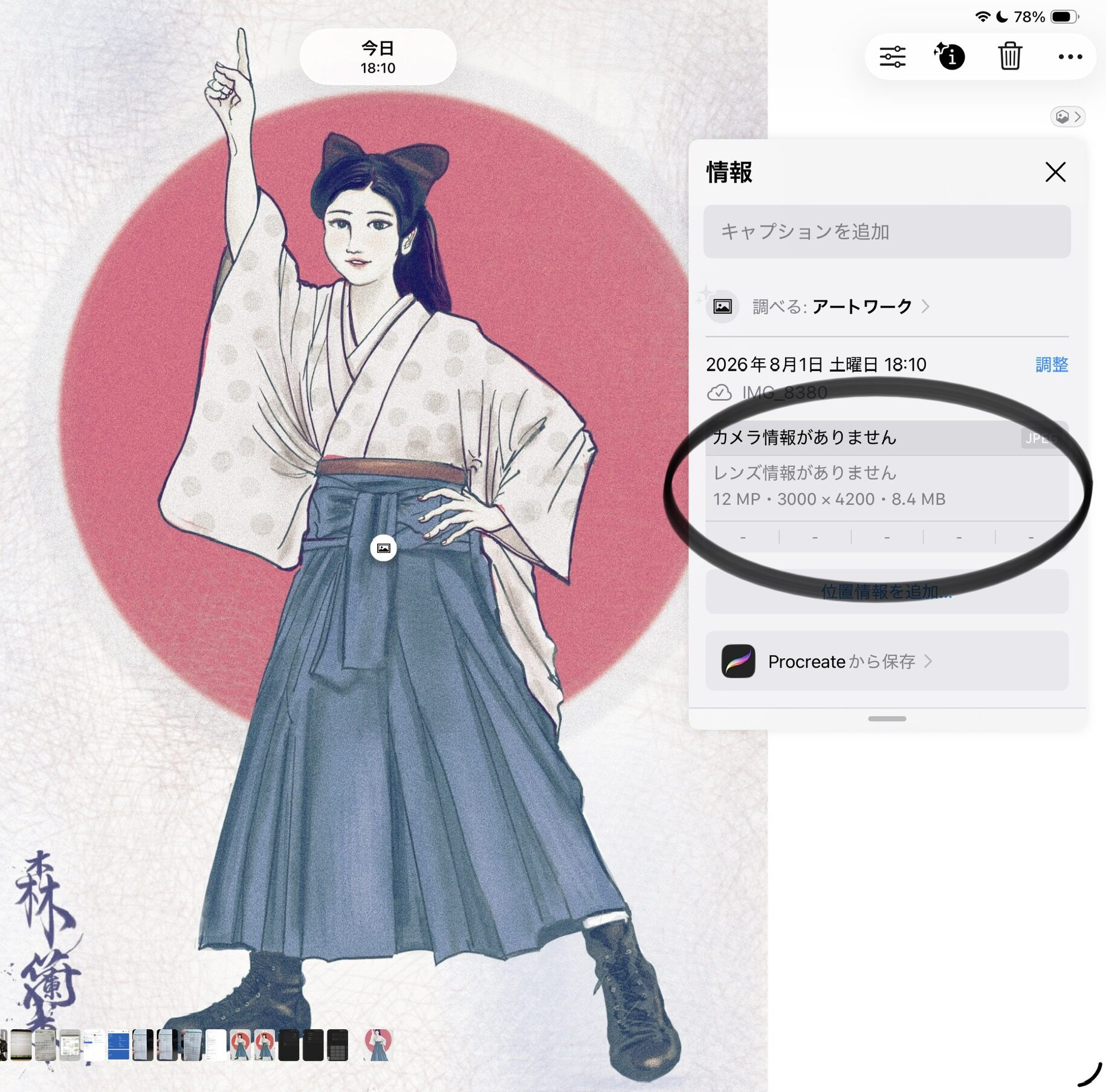
When I uploaded this image to Displate again — this time, all green check marks. At last, I broke through the resolution wall.
For the Title and Description, I Used What I Wrote on FAA, As-Is
Moving on, a title and description — apparently auto-generated by Displate’s AI — were displayed, pre-filled. Plausible English text objectively describing the picture’s content.
However, this work already has a title and description I wrote myself on FAA, with feeling: the title “Doshanoyo Girl in Hakama,” and a short story-style description starting with “Saturday night belongs to her.” Since the opportunity was there, I erased all of Displate’s auto-generated text and rewrote it with the FAA text.
Depending on the platform, some ask you to input from a blank slate, while others have AI prepare a draft to some extent — this, too, was a difference I only noticed by walking across multiple platforms.
Setting the Category and Collection
Next, the category and collection settings. For the category, I chose the same “Anime & Manga” as the first work.
As for the collection: putting it into “Taisho Roman World Cup,” which I made for the first work, wouldn’t fit this work, which has nothing to do with the World Cup. So I decided to newly create a broader-themed collection, “Taisho Roman.”
At the Very End, One More Small Stumble
With all settings done, I thought I pressed the “NEXT” button… but the screen showed in red: “This field is required.”
Looking closely, I had forgotten to check the terms-of-service agreement checkbox at the very bottom…
I checked it again and pressed “NEXT” once more. This time, the upload completed safely.
You really can’t let your guard down until the end, laughs.
Into Review
The screen displayed, with green check marks, a notice that “the system will now conduct a technical and print-quality review.” The same review-waiting status as the first work, “World Soccer Championship.” This is a big point where Displate differs from other overseas sites. Though usually, a reply comes back within a few days.
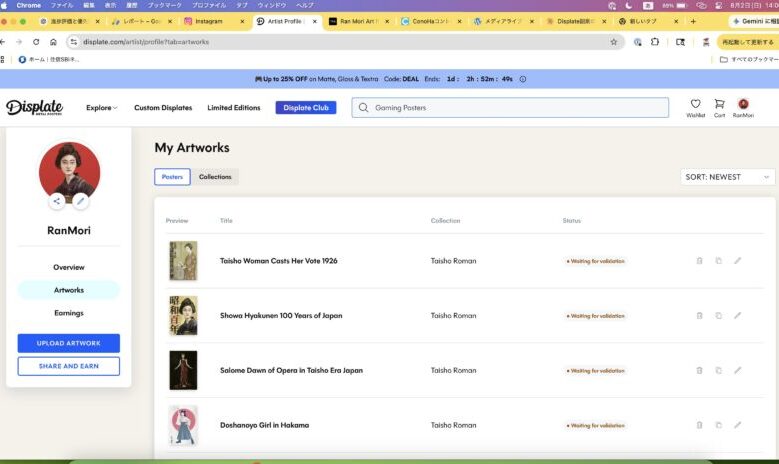
The first work, “World Soccer Championship,” when I checked in the Upload History afterward, had safely reached “Published” status. Hoping this second work will pass review the same way, I’ll report again as soon as there’s a follow-up.
Next: The Big Comparison of 5 Overseas Platforms
Part 2 summary
Even after creating the new account, small walls continued: SMS identity verification, resolution errors (2900×4060 px or more, 1.4:1 ratio required), and a missed terms checkbox. The first work, “World Soccer Championship,” was safely published on Displate, and the second, “Doshanoyo Girl in Hakama,” was submitted for review after I acquired the concrete remedy of rebuilding the canvas size in Procreate. From a state where I couldn’t even log in, I achieved my first listing after about two months.
Looking back across Parts 1 and 2, Displate was a tougher opponent than any platform I’d registered on before. But in exchange, the sense of achievement was that much greater.
Sales are still zero, but this time I want to honestly rejoice in the fact that “I got it published.” From here on, while adding new works, I’ll be watching the response on Displate as well.
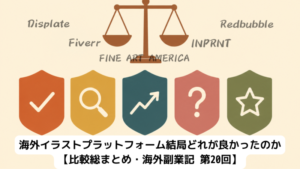
Next: INPRNT, Redbubble, FAA, Displate, Fiverr — Which One Was Best in the End?

Comments